How to batch convert images
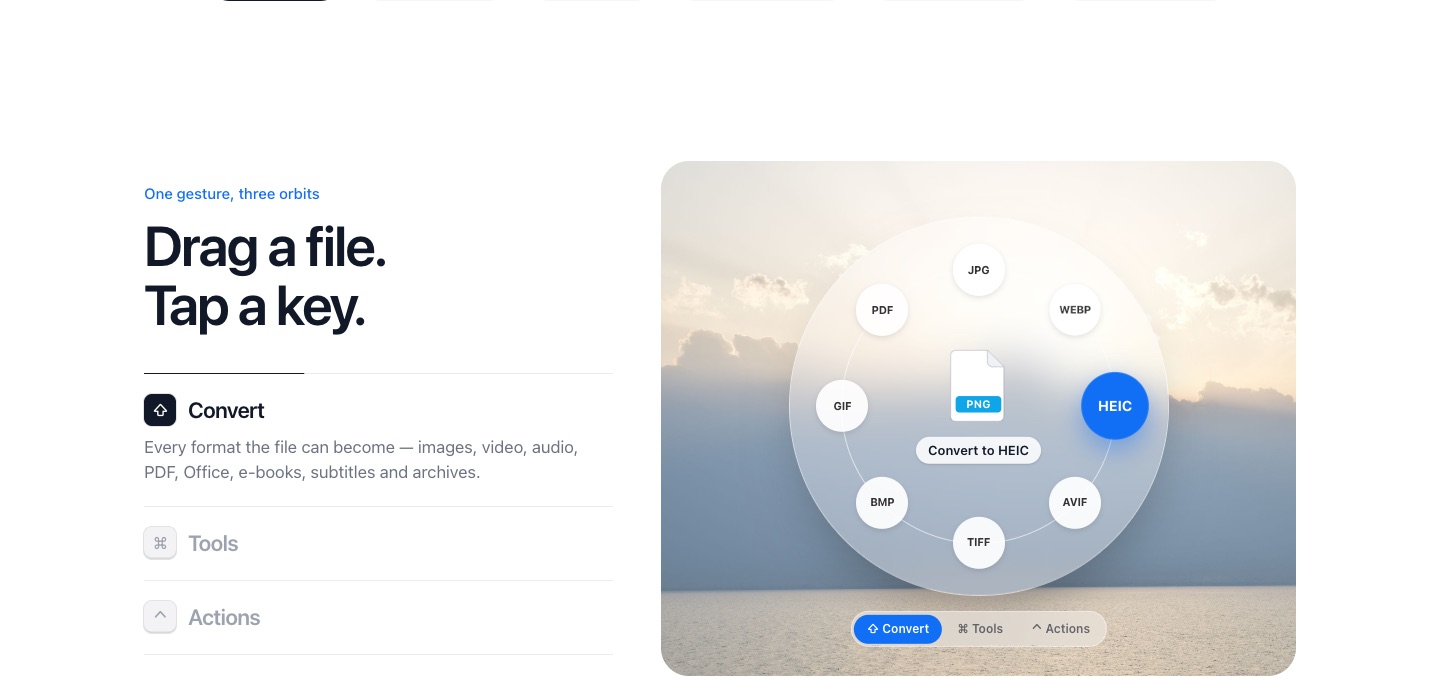
To convert many images at once with PlanetOS Pro, select them all, start dragging, tap Shift and drop the whole group on the format you want. Each file is converted next to its original.
How it works
- 1
Select the images in Finder or File Explorer (Cmd+A or Ctrl+A selects a whole folder).
- 2
Start dragging the selection and tap Shift.
- 3
Drop it on the format: JPG, PNG, WebP, AVIF, HEIC, TIFF or PDF.
Resizing and compressing in bulk
The Tools ring works on batches too: Fit to 1080 px for social media, Compress… to an exact size, Remove metadata to strip location data before you share, or Combine into PDF to make one document of them all.
Batches are part of Pro ($9.99 once). The free version handles one file at a time, five times a week.
Mixed formats
A selection can mix HEIC, PNG and WebP; every image ends up in the format you drop it on. Common targets: HEIC to JPG, PNG to JPG, JPG to WebP.
PlanetOS does all of this on your computer. Your files are never uploaded, and it works without an internet connection.
Questions
Is there a limit to how many images?
No fixed limit. Hundreds of photos are fine; they're processed one after another.
Can I script it?
Yes, PlanetOS includes a command line tool, planetos convert.