WebP to JPG
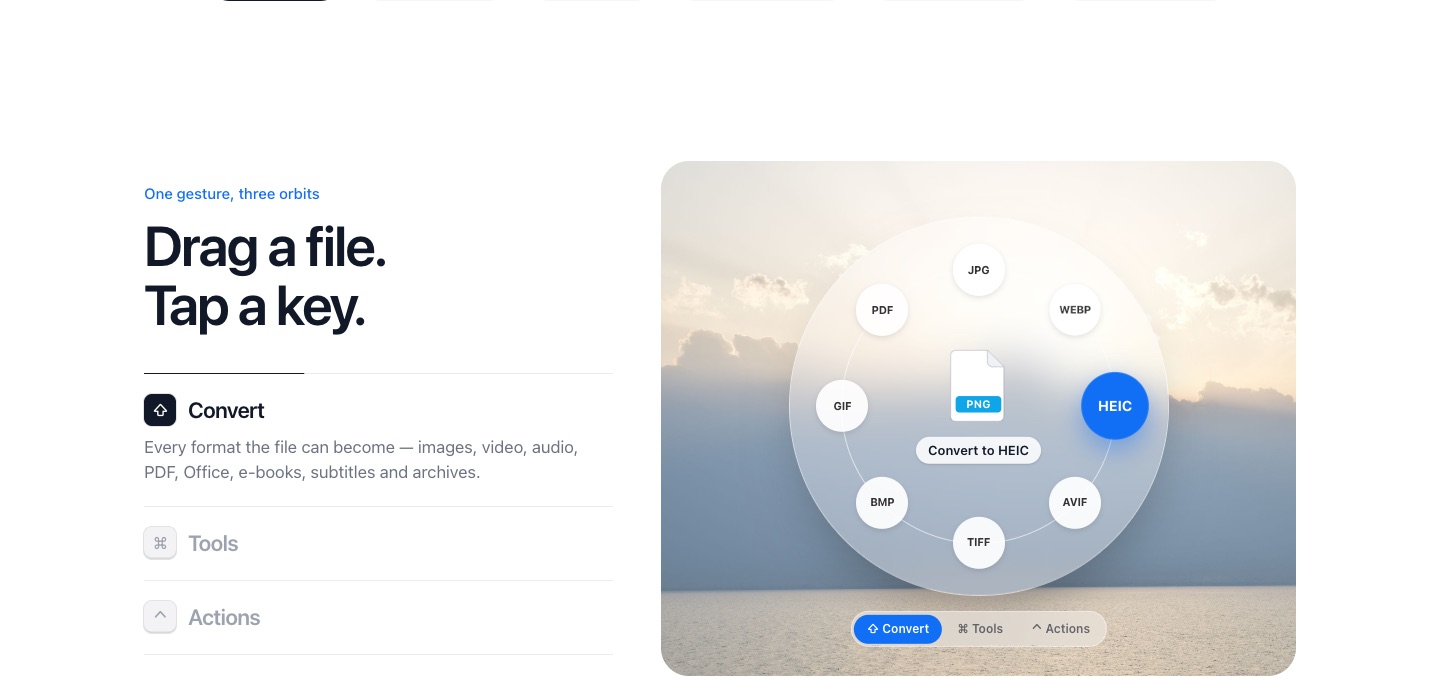
Drag the WebP image, tap Shift and drop it on the JPG planet. PlanetOS saves a JPG copy next to it, ready for apps and websites that still don't accept WebP.
How to convert WebP to JPG
- 1
Start dragging the WebP file, from the desktop or any folder.
- 2
While you're still holding it, tap Shift. A ring of planets opens around the file, one for each format it can become.
- 3
Drop the file on the JPG planet. The JPG copy appears next to the original a moment later.
Where WebP files come from
Most websites now serve their images as WebP because the files are smaller. When you right-click and save one, you get a .webp file, and some older editors, upload forms and office apps won't take it.
Converting to JPG fixes that. If the WebP has a transparent background, convert it to PNG instead, since JPG fills transparency with a solid color.
PlanetOS does all of this on your computer. Your files are never uploaded, and it works without an internet connection.
Questions
Will the JPG look worse than the WebP?
No visible change at the default quality. You can raise JPG quality in Settings → Formats.
Do animated WebP files work?
PlanetOS converts the image as a still. For animation, a GIF or MP4 is the better target.