How to open HEIC files on Windows
Windows can only open HEIC photos after you install two Microsoft Store extensions, and one of them costs money. The simpler fix is to convert the HEIC files to JPG, which every Windows app opens.
How it works
- 1
Install PlanetOS for Windows and start it. It appears in the system tray.
- 2
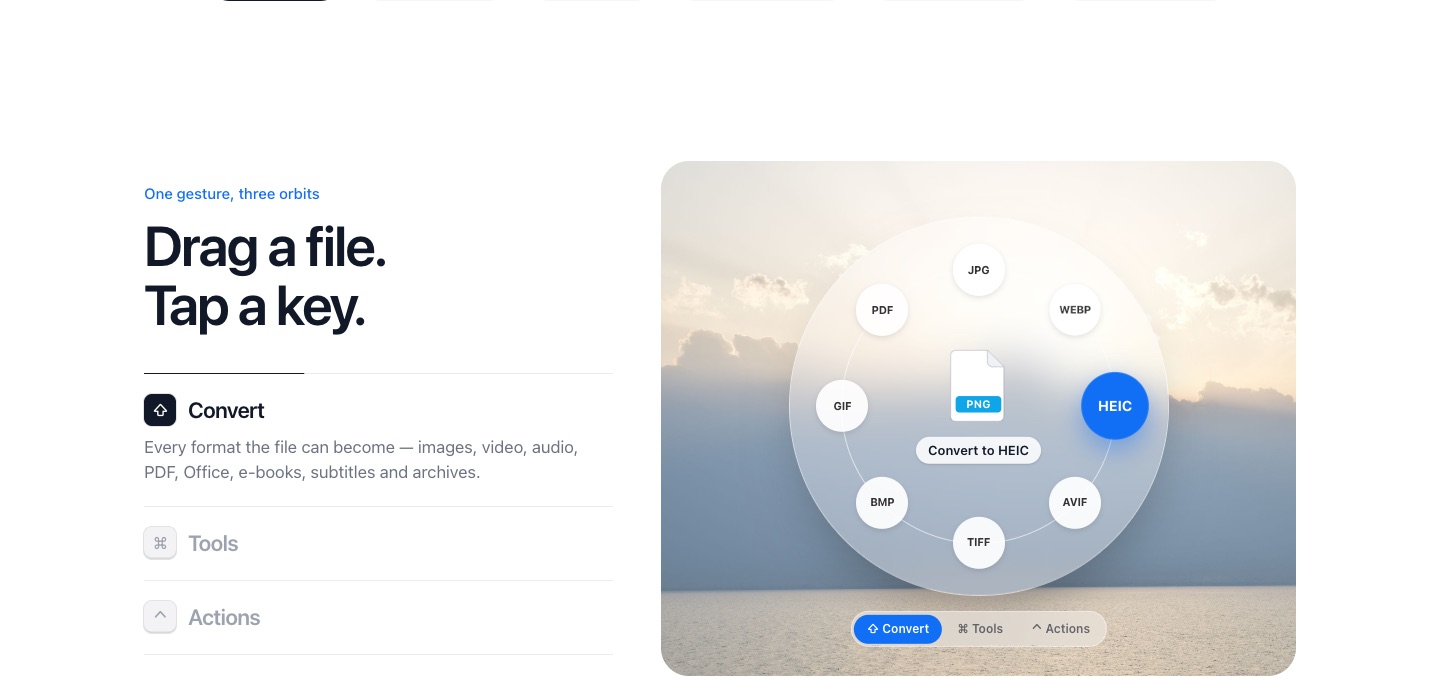
In File Explorer, start dragging the HEIC photo (or, with Pro, a whole folder's worth).
- 3
Tap Shift and drop the files on JPG. The JPGs appear next to the originals.
Option 1: Microsoft's extensions
Windows 10 and 11 need the HEIF Image Extensions (free) and the HEVC Video Extensions (a small fee) from the Microsoft Store before the Photos app can show HEIC files. Even then, many other programs, upload forms and older editors still won't accept them.
Option 2: convert to JPG
Converting gives you files that work everywhere, including on other people's computers. PlanetOS reads HEIC itself, so it doesn't need those extensions. See HEIC to JPG for the details.
Option 3: stop the iPhone sending HEIC
On the iPhone, Settings → Camera → Formats → Most Compatible makes new photos JPG. Or leave HEIC on and set Settings → Photos → Transfer to Mac or PC → Automatic, so photos copied over a cable arrive as JPG. Photos already taken stay HEIC.
PlanetOS does all of this on your computer. Your files are never uploaded, and it works without an internet connection.
Questions
Why does Windows say it needs a codec?
HEIC photos are compressed with HEVC, which Windows doesn't include by default.
Will converting lose quality?
Not visibly. JPG files are a bit bigger than the HEICs.