HEIC to PNG
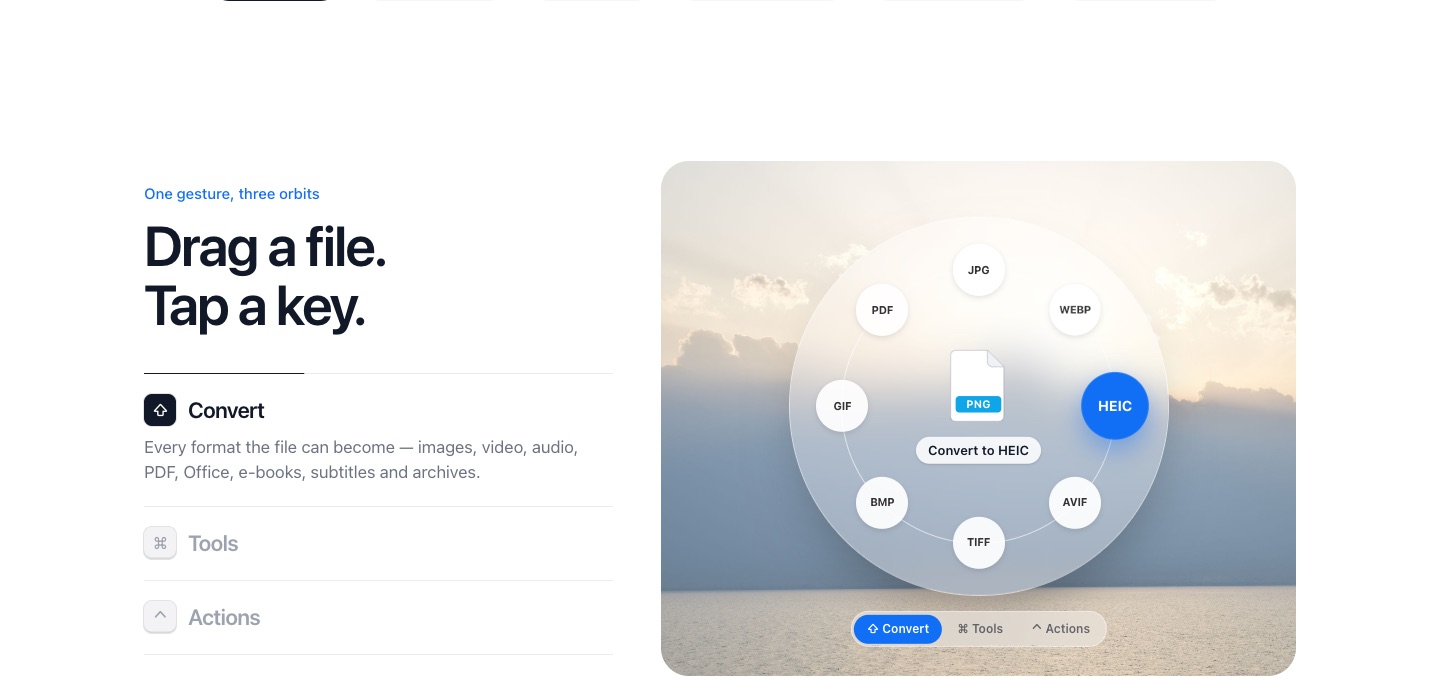
PlanetOS turns a HEIC photo into a PNG in one drag: start dragging the file, tap Shift, drop it on PNG. PNG is lossless, so nothing more is thrown away during the conversion.
How to convert HEIC to PNG
- 1
Start dragging the HEIC file, from the desktop or any folder.
- 2
While you're still holding it, tap Shift. A ring of planets opens around the file, one for each format it can become.
- 3
Drop the file on the PNG planet. The PNG copy appears next to the original a moment later.
PNG or JPG?
Pick PNG when you're going to edit the image further, cut it out, or need every pixel exactly as it is. Pick JPG when you just want to share or upload the photo, because a PNG of a camera photo is often three to five times bigger.
If the HEIC came from Portrait mode or a screenshot with transparency, PNG keeps that transparency. JPG can't.
PlanetOS does all of this on your computer. Your files are never uploaded, and it works without an internet connection.
Questions
Why is the PNG so much bigger than the HEIC?
HEIC uses modern lossy compression; PNG stores every pixel without loss. A large PNG is normal for photos.
Can I convert many HEIC files to PNG at once?
Yes, with PlanetOS Pro. Select them all, drag, tap Shift and drop the group on PNG.