How to convert a PDF to Word without uploading it
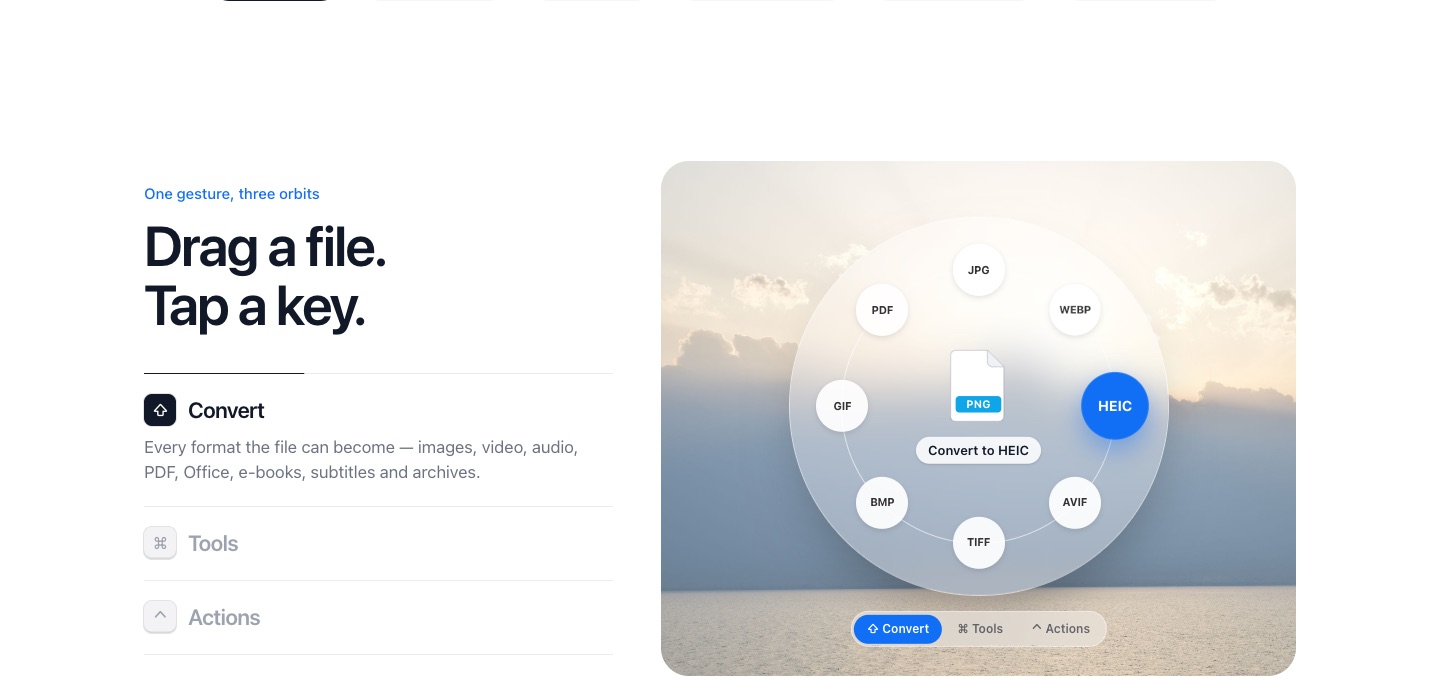
To convert a PDF to Word privately, use an app that works on your own computer instead of a website. With PlanetOS: drag the PDF, tap Shift, and drop it on Word. The DOCX is saved next to the PDF and the file never goes online.
How it works
- 1
Start dragging the PDF.
- 2
Tap Shift.
- 3
Drop it on Word document. Open the DOCX in Word, Pages or LibreOffice and edit.
What happens to files you upload
Online converters process your PDF on their servers and usually delete it after a period, often an hour or a day, according to their own policies. That's fine for a flyer. For a contract, a payslip, a medical report or a CV, it's one more copy of personal data on a machine you don't control.
Other offline options
- Microsoft Word opens PDFs directly (File → Open) and converts them; the layout handling is good.
- Google Docs converts PDFs too, but that uploads the file to Google Drive.
- PlanetOS is the quickest when you don't want to open anything: one drag. See PDF to Word for what carries over.
PlanetOS does all of this on your computer. Your files are never uploaded, and it works without an internet connection.
Questions
Will scanned PDFs convert?
A scan is a picture with no text in it. Use Extract text on the page images instead.
Can I remove personal data before sharing a PDF?
Yes, with Redact sensitive info. See Blur faces and redact info.