JPG to PNG
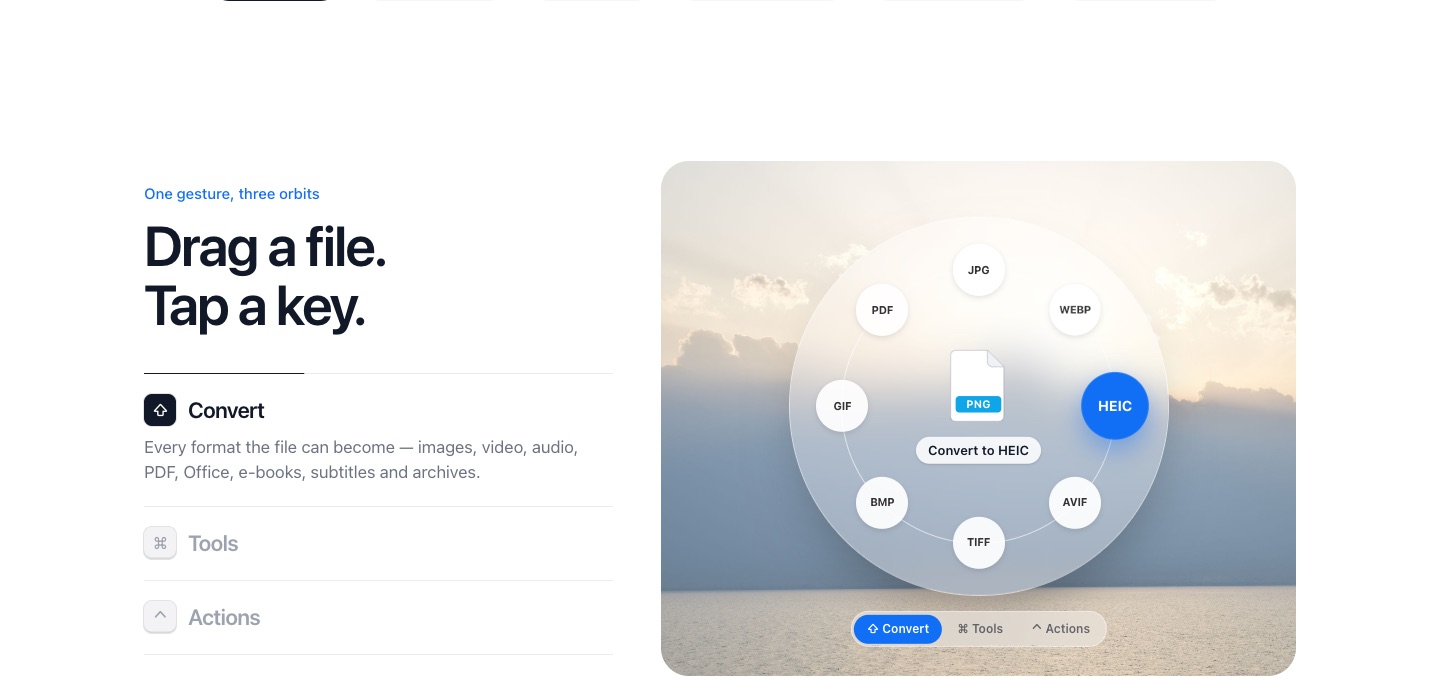
PlanetOS converts a JPG to PNG when you drag the file, tap Shift and drop it on the PNG planet. Use it when a form, a print shop or an editor insists on PNG.
How to convert JPG to PNG
- 1
Start dragging the JPG file, from the desktop or any folder.
- 2
While you're still holding it, tap Shift. A ring of planets opens around the file, one for each format it can become.
- 3
Drop the file on the PNG planet. The PNG copy appears next to the original a moment later.
A note on quality
Converting to PNG doesn't make a JPG sharper; it stores the image exactly as it is now, without adding any further compression. That's useful if you're about to edit the image several times, because each JPG save loses a little more.
Converting won't create a transparent background either. To cut out the subject, use Remove background, which saves a PNG with transparency.
PlanetOS does all of this on your computer. Your files are never uploaded, and it works without an internet connection.
Questions
Why is my PNG bigger than the JPG?
PNG is lossless and doesn't compress photos as tightly. That's expected.
Can I convert a folder of JPGs to PNG?
Yes, with Pro: select the files, drag them together and drop them on PNG.