PDF to JPG
Drag the PDF, tap Shift and drop it on JPG. PlanetOS renders each page at 300 dpi. A one-page PDF becomes one JPG; a longer one becomes a folder of numbered images.
How to convert PDF to JPG
- 1
Start dragging the PDF file, from the desktop or any folder.
- 2
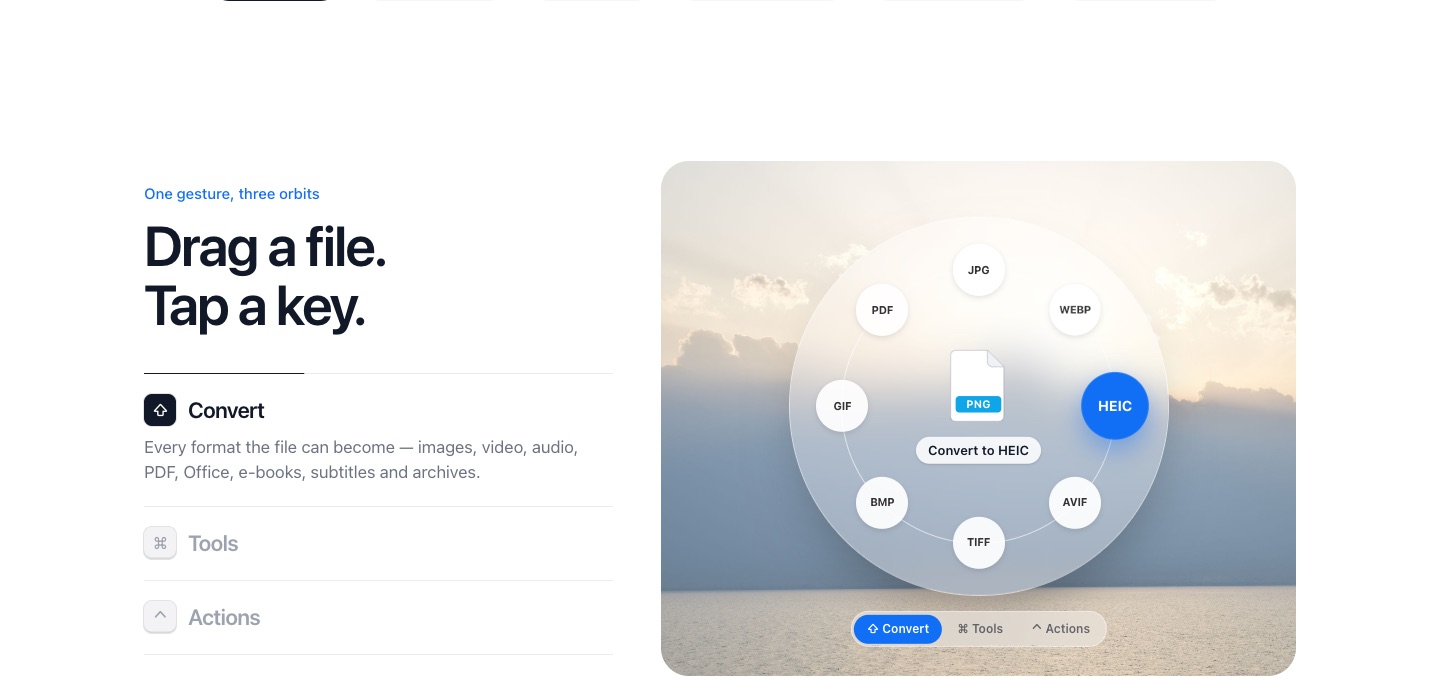
While you're still holding it, tap Shift. A ring of planets opens around the file, one for each format it can become.
- 3
Drop the file on the JPG planet. The JPG copy appears next to the original a moment later.
Good to know
300 dpi is print quality, so the images are sharp enough for slides, social posts or printing. If you need transparency or crisp text, choose the PNG planet instead.
Pages are saved as page-001.jpg, page-002.jpg and so on, so they stay in order in any file manager.
PlanetOS does all of this on your computer. Your files are never uploaded, and it works without an internet connection.
Questions
Can I convert just one page?
Drop the PDF on Organize pages… first to keep only the page you want, then convert that.
And the other way round?
See JPG to PDF.