JPG to PDF
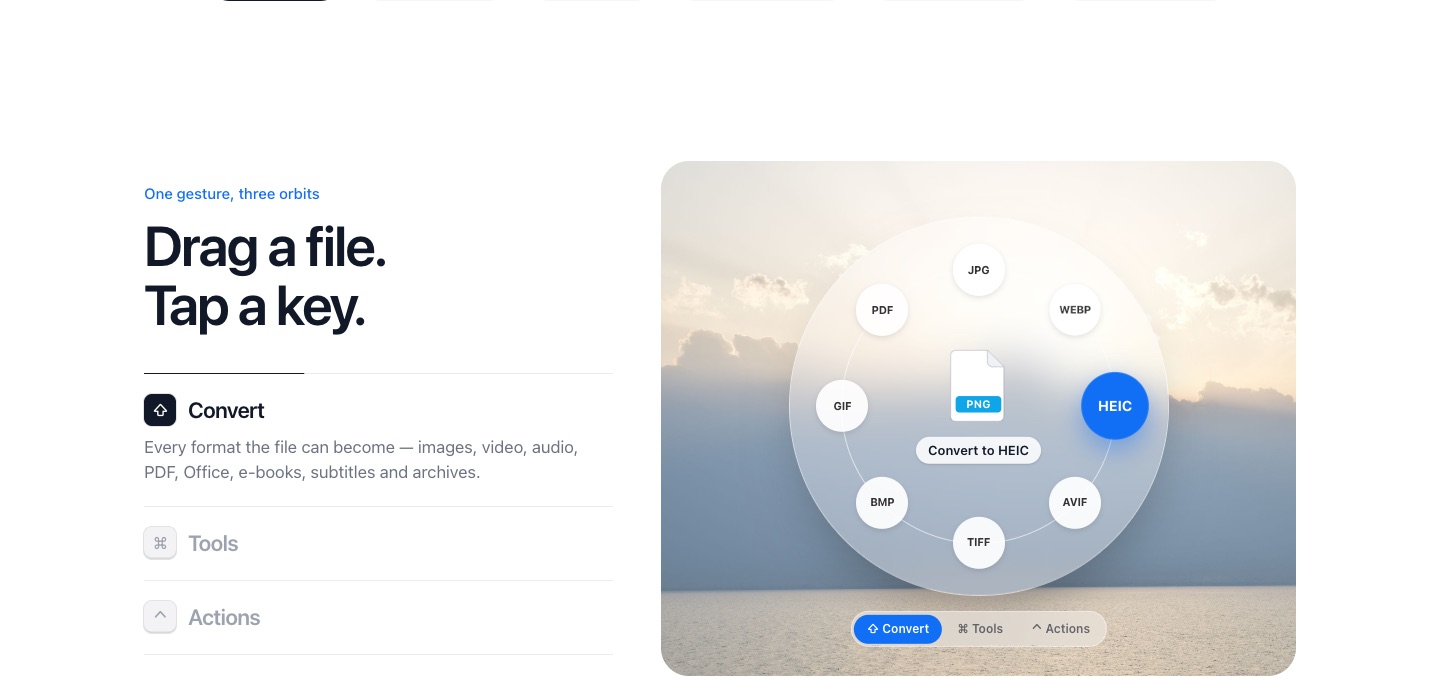
Drag a JPG, tap Shift and drop it on PDF to get a one-page PDF. To combine several images into a single PDF, select them all and use Combine into PDF among the tools.
How to convert JPG to PDF
- 1
Start dragging the JPG file, from the desktop or any folder.
- 2
While you're still holding it, tap Shift. A ring of planets opens around the file, one for each format it can become.
- 3
Drop the file on the PDF planet. The PDF copy appears next to the original a moment later.
Scans, receipts and forms
Plenty of portals only accept PDF uploads, even when what you have is a phone photo of a document. Converting it takes one drop and keeps the image at full resolution.
For a multi-page document, select the pictures in order, drag them together, tap the Tools key (Command on a Mac, Alt on Windows and Linux) and drop them on Combine into PDF. Combining several files needs Pro.
Too big to upload?
Run the PDF through Compress PDF, or pick Email (1 MB) to bring it under a typical upload limit.
PlanetOS does all of this on your computer. Your files are never uploaded, and it works without an internet connection.
Questions
Does it work with PNG and HEIC too?
Yes, any image PlanetOS can open can become a PDF.
Can I put the pages in a different order?
After combining, drop the PDF on Organize pages… to drag pages around or remove them.