How to snap windows on a Mac
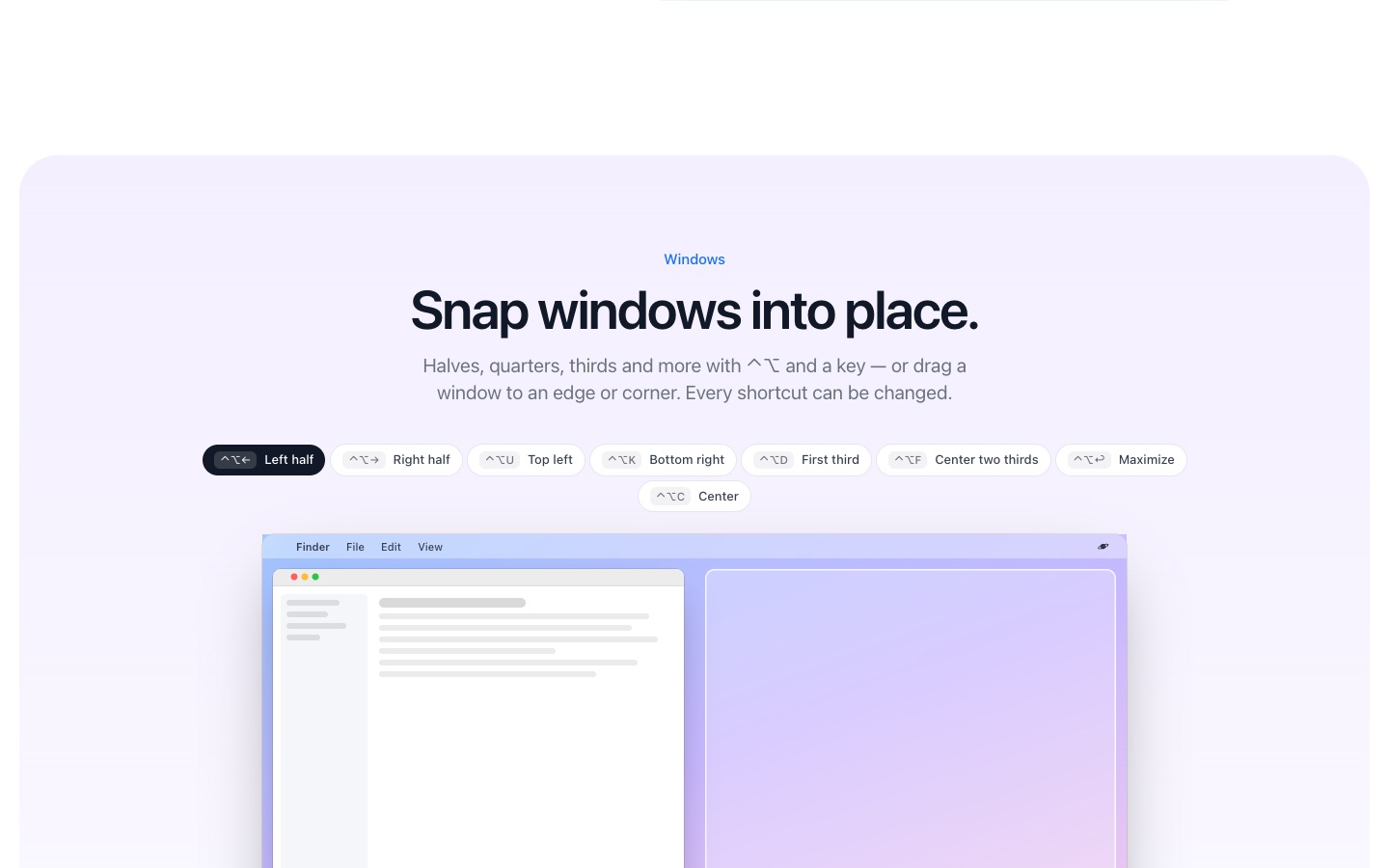
macOS Sequoia and later can tile windows when you drag them to a screen edge or use Window → Move & Resize. For more layouts and shortcuts, PlanetOS adds halves, quarters, thirds and centering on Control + Option + arrow keys.
How it works
- 1
Install PlanetOS, open Settings → Windows, turn on window management and allow Accessibility access.
- 2
Click a window and press ⌃⌥← to put it on the left half, ⌃⌥→ for the right half.
- 3
Press the same shortcut again to switch between half, two thirds and one third. Or drag a window to an edge or corner; hold Shift while dragging for a wheel of layouts.
What macOS does on its own
On macOS 15 Sequoia or later, drag a window to the left or right edge to tile it, or hold Option while dragging to see where it will go. The green button's menu has tiling options too. On older versions, Split View (full screen) is the built-in way to put two apps side by side.
What PlanetOS adds
- Quarters, thirds, two thirds, centered and maximized
- Repeat a shortcut to cycle sizes
- Gaps between windows, and apps to leave alone
- Shortcuts you can change, and the same shortcuts on Windows and Linux
PlanetOS does all of this on your computer. Your files are never uploaded, and it works without an internet connection.
Questions
Does it cost anything?
Window snapping is part of the free version and doesn't use up actions.
Will it clash with Rectangle or Magnet?
Use one window manager at a time, or record different shortcuts in PlanetOS. PlanetOS vs Rectangle.