Trim a video
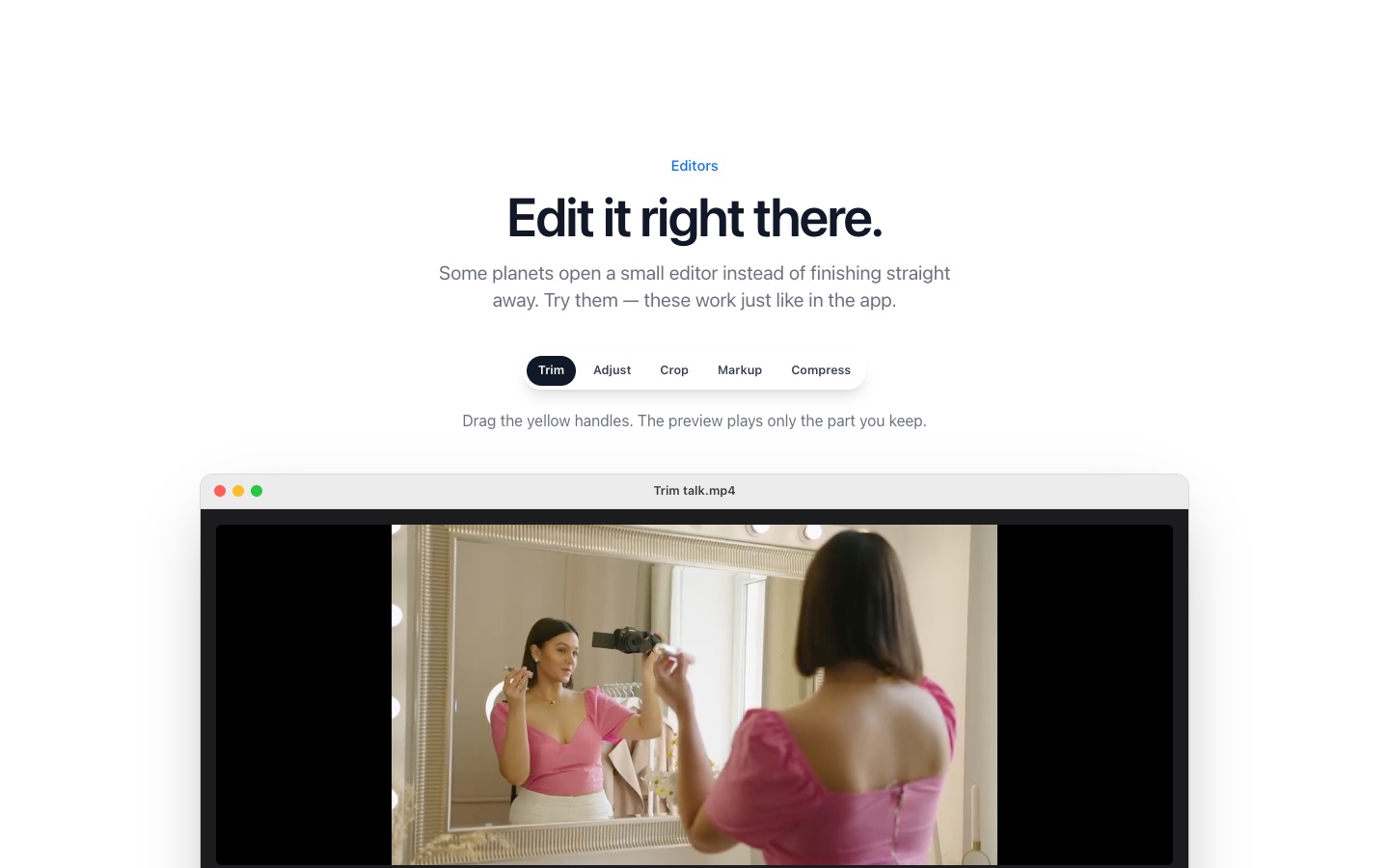
Drag the video, tap the Tools key (Command on a Mac, Alt elsewhere) and drop it on Trim…. Drag the yellow handles to the part you want to keep and press Trim. Trimming copies the video as it is, so it's quick and loses no quality.
How it works
- 1
Start dragging the video or audio file.
- 2
Tap Command (Mac) or Alt (Windows, Linux).
- 3
Drop it on Trim…, drag the yellow handles, and press Trim. The trimmed copy is saved next to the original.
Other video editors in the ring
- Split… cuts a clip into parts.
- Save frames… saves stills from the video as images.
- Crop… crops the picture, for example to remove black bars.
- Speed… speeds up or slows down a clip, and Mute removes the sound.
- With several clips selected, Join videos puts them together (Pro).
Audio too
Voice memos, podcasts and songs get the same Trim editor, plus Normalize volume and Bleep… to beep out a word.
PlanetOS does all of this on your computer. Your files are never uploaded, and it works without an internet connection.
Questions
Which formats can I trim?
MP4, MOV and M4V videos, and common audio formats like M4A, MP3, WAV and FLAC. Convert other videos to MP4 first, for example MKV to MP4.
Does trimming reduce quality?
No, the kept part is copied without re-encoding.